Roll the Dice
By clicking the Spacebar, the Dice will give you a new number, so the "cool emoji” on the top left corner will move the same number of steps showing on the dice.
Hi everyone! I'm Adam Zahr and I'm excited to share the awesome game I created using Pygame, a cool tool that lets me build game with Python code. As part of Classera Hackathon, I worked to design, code, and playtest my own video game. The game questions are Grade 4 Level. Everything you see here was made by me. Just like me! I hope you have as much fun playing as I did making it!
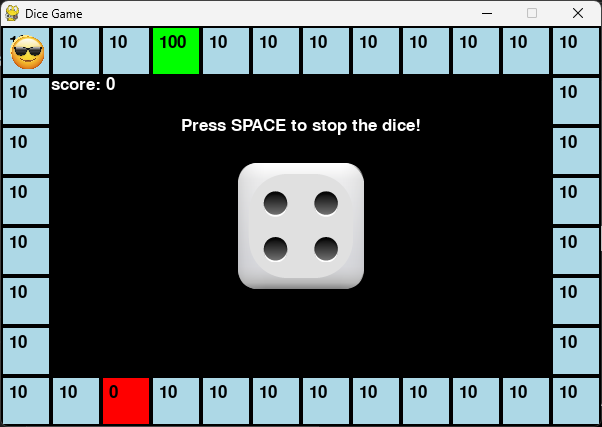
By clicking the Spacebar, the Dice will give you a new number, so the "cool emoji” on the top left corner will move the same number of steps showing on the dice.
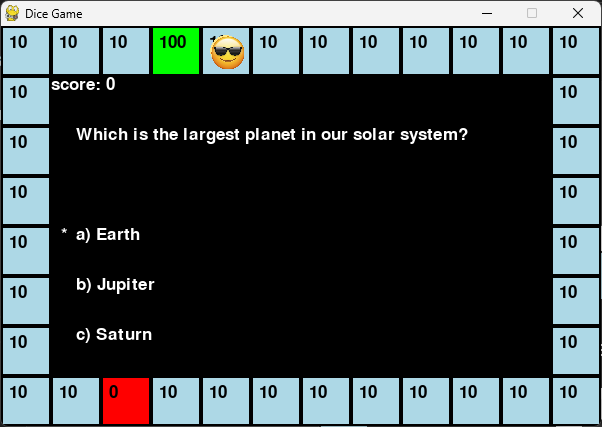
After the "cool emoji” stops on the required square, the dice will disappear and the question will show up, with the arrow keys ”up and down” you can choose your answer, and by hitting the Spacebar you will submit your answer and move to the dice to roll it again and move to the next question.
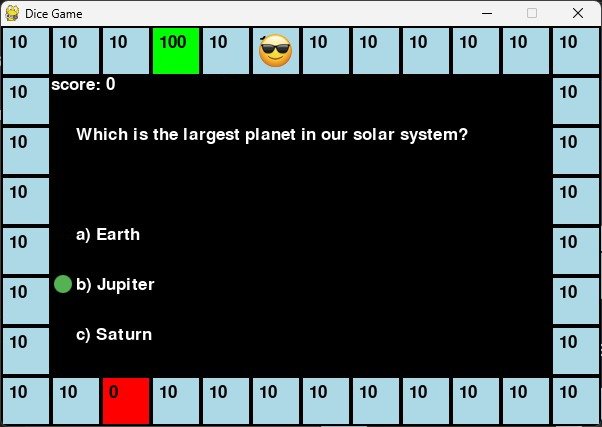
If the "cool emoji” lands on the Blue square marked with -10- , your score will be increased by 10 if you answered correctly.
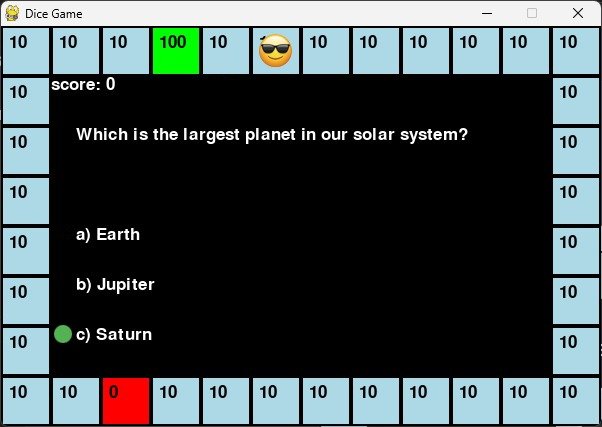
If the "cool emoji” lands on the Blue square marked with -10- , your score will be decreased by 5 if your answer was wrong.
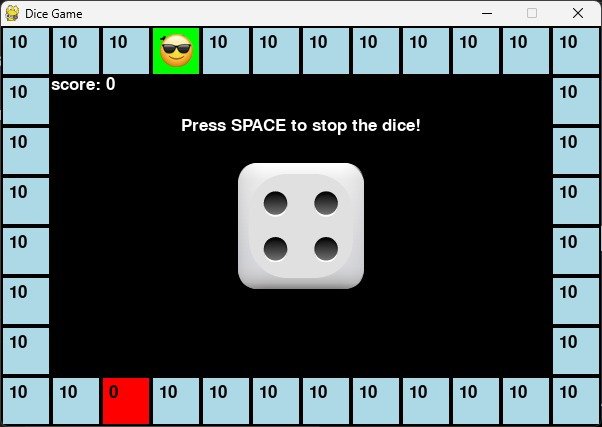
If the "cool emoji” lands on the green square marked with -100- your score will increased by 100 points.
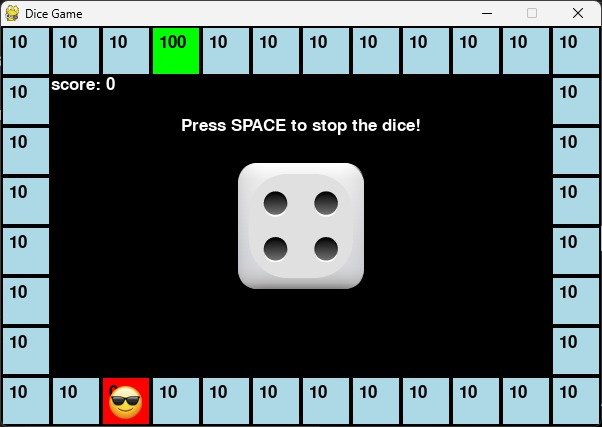
If the "cool emoji” lands on the red square marked with -0- your score will turn ZERO.
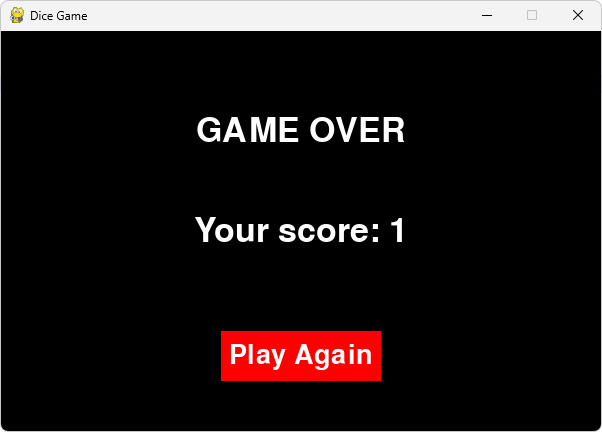
when the "cool emoji” turn the round of the squares all around, your score will show up and the Game will be Over, and you will have the chance to Play Again by clicking the Play Again Button.

Lucas, Grade 3
"I can't believe kids made this! It looks awesome and I played it three times!"

Zoe, Grade 4
"I liked how you had to answer the questions to win. It made me want to keep going!"

Ava, Grade 4
“This game is so fun!"